Media library
Your account has a separate media library so that it can be used with multiple projects. It's a place to store images, videos, fonts and other file types. You can organize them into folders too.
Your media library isn't only for use with projects, it's also great for transferring files between devices. No need to attach files to emails just to send them to yourself! And there's no size limit to what you store since they're only saved on your own devices.
Adding files
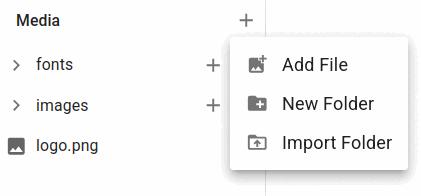 Click the
+ button next to Media in the sidebar, and then click the Add File option in the menu to add something from your own computer. Click New Folder to create a folder, you will be asked to provide a name for it. Supported file types are: most image and video formats, fonts types include .woff, .woff2, .ttf, and .otf. Other supported files are PDF and .zip files.
The files you add remain stored in your own browser, and are kept synchronised across the browsers on other devices you are signed in to. There's a download option on each media item if you just want to use the app for file transfers. The server can also keep a copy if you want to use it for backup, which depends on your account's storage limit. This is an added feature if you don't want to rely on your own devices staying open for syncing. See Account & storage for how that limit works and how to increase it.
The New Folder menu option creates folders for you to organise your files, the same way as you can organise projects. You can move, rename and delete folders too. The Import Folder menu option will import as many files as it finds under a given folder name, creating the same folder name structure for you as it imports your files. It will show you the import progress and allow you to cancel if required.
Browsing and previewing
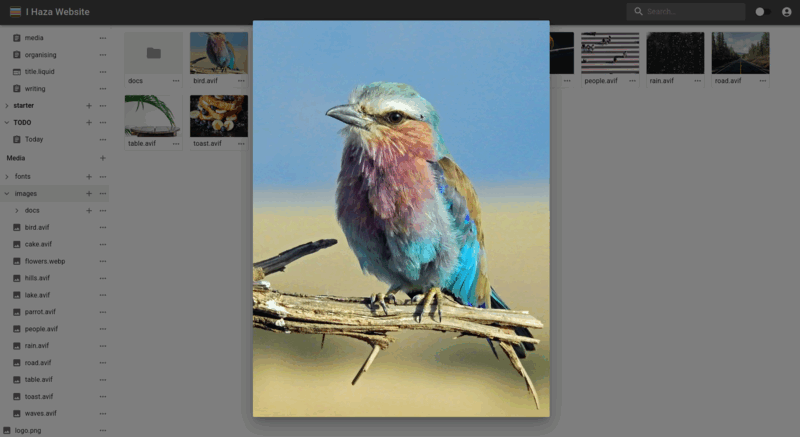 Images and videos show a thumbnail and open in a full preview when clicked. Other files such as fonts, PDFs and zip files shows an icon instead.
Every thumbnail has its own ⋯ actions menu allowing you to Rename, Download, Move and Delete files and folders. The Download option for folders will create a zip file of all the content under the specified folder and automatically save it to your device.
Using media in a page
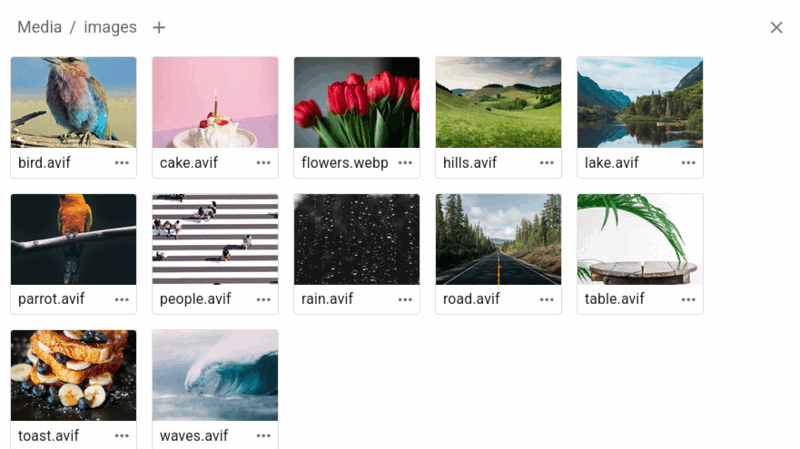 Use the media library directly from the editor's Insert media and Link media buttons, see Writing pages for more details. A media library browser dialog is displayed which let's you select a file or browse other folders. There's also an add file option next to the dialog title if you need to add more files from your device. It will add them into the currently displayed folder.
Insert media allows you to select from image and video file types. These will be embedded into the current page you're working on. The Link media button works with any file type and adds a download link to the page.
You can also work with your media library directly in templates by specifying the paths to your files. See Templates & page design.