Writing pages

I Haza Website uses a rich-text editor to create pages. You can use it in full screen mode by closing the sidebar, click the  icon in the top left corner to toggle it. The sidebar width can also be adjusted on larger screens by dragging the right edge, and is displayed as a slide out menu on mobile.
The editor has lots of options to help you create content, this page describes them in detail. You can also import existing markdown and html documents and they will be converted into the editor's native format. Pasting markdown text into the editor will ask if you would like it formatted too.
Text formatting
The editor has built-in markdown support, which means you can use the keyboard combinations described below rather than requiring the toolbar for some of the editing options.
Headings - select from the dropdown or type
#followed by a space at the start of a line. You can use##for a second-level heading and so on.Bold, italic,
strikethroughandinline codeeach have their own toolbar buttons, or type them using markdown formatting:**bold**,*italic*,_italic_,~~strikethrough~~and`code`for inline conversion.Text color and highlight color - pick from the two color buttons to change the color of selected text, or the color behind it.
Remove formatting button clears all of the above from the current selection, back to plain text.
Lists, quotes and structure
Bulleted and ordered lists have toolbar buttons or use their markdown commands by starting a line with
-or1.followed by a space.Blockquote has a toolbar button to create a quote or use markdown by starting a line with
>followed by a space.Horizontal rule has a toolbar button for a divider line, or use markdown by typing
---on its own line.
Links
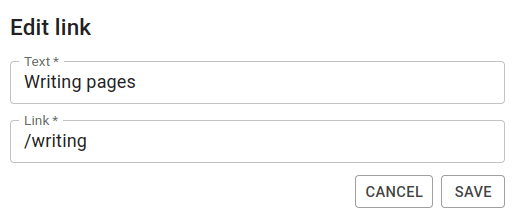 Select some text and click the link button to attach a link. A small toolbar appears above the link itself afterward, letting you edit or remove it without reopening the dialog. You can create links to other pages in a project by starting the link with a
/ character.
Links open in the same tab by default. To make a specific link open in a new tab instead, switch to View source and add target="_blank" rel="noopener noreferrer" to that link's <a> tag, then click Done - this stays in place after edits through the link toolbar button too.
Images and video
Click the Insert media or Link media button in the toolbar to open the media library file browser and pick a file. You can also add new files from the dialog and navigate to other media folders.
Insert will embed an image or video into the page, the link button creates a download link
which works with any file type.
Hover an embedded image or video and click the pencil icon that appears in the top right corner to open its Media Properties:
Width - a pixel width to display it at, leaving it blank keeps its natural size.
Align - set to Left or Right to float it alongside surrounding text instead of sitting on its own line.
Alt text - a description read by screen readers, and shown if the file fails to load.
Class name - one or more space separated CSS class names, for your own styling or to target with a plugin.
Tables
Click Insert table to add one at your cursor. Click inside it to bring up a floating toolbar for adding or removing rows and columns.
Emoji
Click the emoji button, or type : followed by a few letters, such as :smile, to bring up a searchable popup as you type. 🙂️
Code blocks
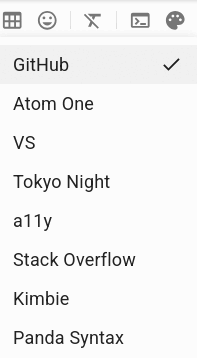 Click the code block button or type three backticks ``` followed by space or enter to create a code block. You can also name a language before pressing space or enter, to specify the type of code you will be adding. Supported languages:
css, javascript, js typescript, ts, xml, html, json, markdown, md, bash, shell, python and plaintext (to leave a block intentionally unhighlighted). A code block created without a language still gets colored, the editor will guess the language from the code itself.
Code block theme - the palette button next to view source lets you pick which color theme highlighted code uses. This is option is set for the whole project, as files need to be added to support highlighting when published. The theme isn't shown when editing, try using preview mode to view the different themes available.
function example() {
  console.log("This page is using the default theme!");
}
View source
The view source button switches a page into viewing HTML, for anyone who wants to write or paste markup directly. CSS files and templates also open in view source mode with syntax highlighting applied.
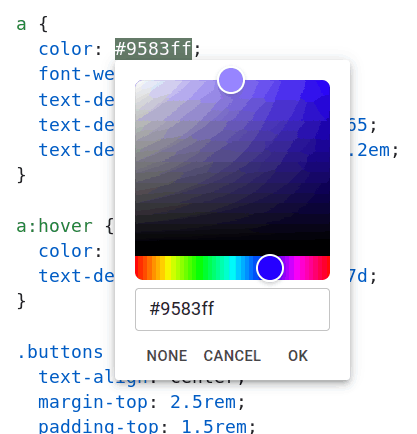 Source mode has a minimal editor toolbar, allowing undo and redo, but it also provides a color picker tool that opens whenever you highlight a color value in a file. It will update the highlighted value when a new color is picked and can also be used to insert new color values at the current cursor placement.
Preview
Click Preview at any time to see the page rendered as it would look once published. This renders the page through any templates you've created so it's a great way to test them too. See templates & page design for more information.
Undo and redo
The undo and redo buttons are available in the toolbar in both rich-text and view source modes. You can also use standard keyboard shortcuts for your system (such as ctrl-z and ctrl-shift-z).