Publishing your site
Any project can be published to its own website, just like this one at docs.haza.website. Publishing a project is how you share your creations with the world! It's the only time your private and encrypted files are ever sent to a server, unencrypted from your device.
All the files referenced in a project are bundled together to create your website, you can publish updates as often as you like. You can also unpublish a project at any time if you want to remove the public version of your website.
Requesting a domain
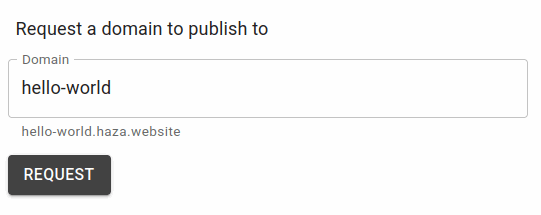 Open the Settings page from the account menu in the top right corner and look for the request a domain section. Pick a name you want to publish to and it will be allocated to you if it's available.
By default accounts can publish to 1 domain at a time. You can remove your selected domain at any time if you want to pick a new one. You can also increase the number of domains you can publish to, see Accounts & storage for more information.
Publishing a project
Click the  icon in the top left corner to return to your projects page, then click the
⋯ actions menu next to a project. From here you can select ⛭ Settings to open the project settings dialog.
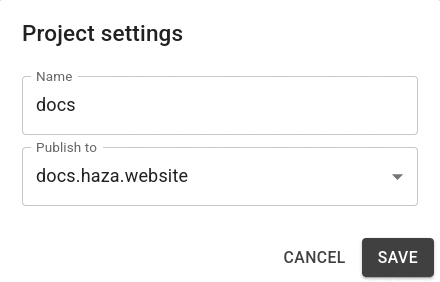 If you haven't chosen a domain yet you will only be able to rename a project, otherwise you will also see a Publish to option where you can select from your available domains. The Save button will now say Publish, if you're not ready to do that you can set it back to None or click Cancel. Otherwise clicking Publish will immediately publish the project.
From then on, whenever you've made changes you want to go live, open the project's ⋯ actions menu and click Publish. If you make changes to any files in a published project, a clock icon will appear next to the project name. Hover over it to see the last published time and date.
Warnings & Errors
It's best to have an index page at the top level of your project since this will become your website's home page. If you don't, you'll see a warning when you publish and visitors will see a fallback page instead of your home page.
If you've created any templates in a project then these will be used to create your pages, if there are any issues with them they will be displayed as warnings when you click publish.
Your project will still be published but you should check the output of the pages shown in the warnings and check the templates mentioned for any syntax problems that are mentioned.
If your project wasn't published to your website then errors will be shown. This could be because it didn't find any pages to publish, or server errors were returned.
Switching or removing a domain
You can change a project's Publish to setting at any time. If you have more than one domain then switching them will unpublish from one and publish to the other. Selecting None will remove the published version of your website.
Your project settings don't effect which domains belong to you, just which ones are published. Use the account settings page to remove the domain itself, if you have a project published there when removed it will be unpublished then too.