Markdown & BonBon
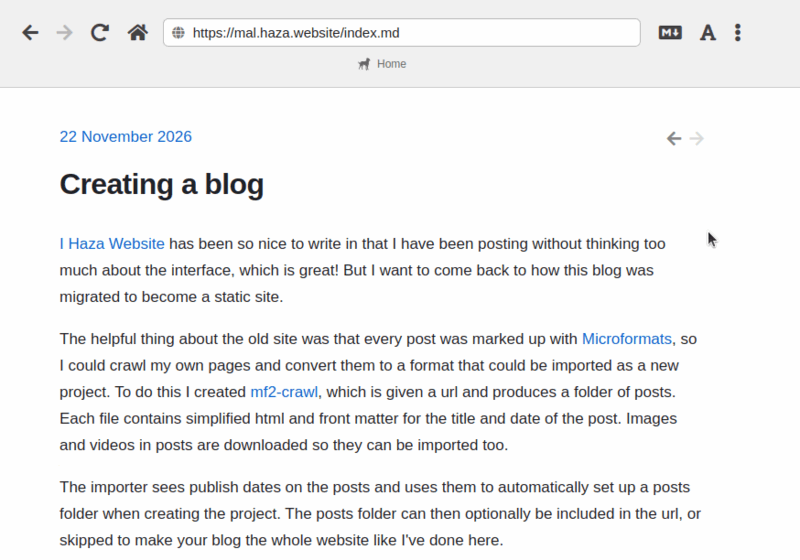 BonBon is a Markdown browser created by Dave Winer. The aim is to create and support a Markdown web, where readers control the style of the pages they're visiting. The styling is set in the browser, so a website only needs to publish Markdown files.
I Haza Website can publish your pages and posts as Markdown, either alongside your HTML posts or as standalone Markdown pages. You can create a blog and then check a box to also publish your posts as markdown, so that two files are then generated from the same content.
Markdown files
Create pages and posts with .md or .markdown extensions so that the editor knows to only show you toolbar options that can create Markdown. The View source button in this mode will show you the Markdown text that will be published, and you can edit as Markdown as well. Once your Markdown files are created, you can then publish them with a markdown template.
A Markdown file is published through its template like any other page, so it's published as an .html page through an HTML template, and as a .md page through a Markdown template.
Renaming an HTML page with a .md extension may reduce what can be expressed in Markdown syntax. If anything would need to be removed, you'll be asked first. Renaming a .md file to .html keeps everything, and switches the page to use the full editor.
Publish a Markdown version of your posts
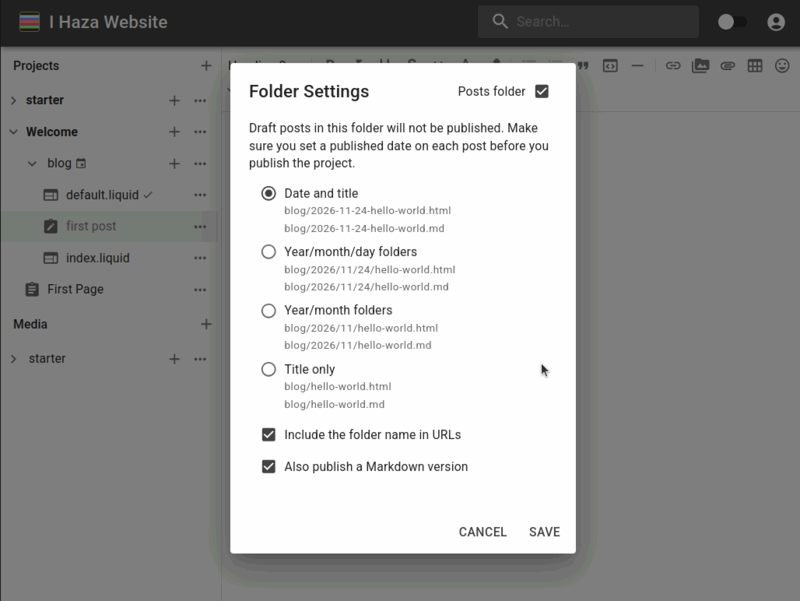 Tick Also publish a Markdown version in a posts folder's settings to publish each post as Markdown as well. A Markdown post can be published with front matter, giving its title, date, author, and navigation links to previous and next posts. The front matter allows BonBon to navigate between your posts.
See creating a blog for how to set up a posts folder. The folder can also apply templates you create yourself, click New File on the posts folder and give the file a .liquid extension. Each version of your posts can have a matching template applied, if you don't provide a Markdown template then the default BonBon support is provided. This is the same as adding frontmatter: true in your own template, which is a helper to provide the default text shown below.
Markdown templates
A template can publish Markdown pages instead of HTML. To enable this add markdown: true to its front matter:
---
markdown: true
---
# {{ page.title }}

{{ content }}
A page using this template is published as .md instead of .html. For Markdown templates:
{{ content }}is the page's content as Markdown. Videos and file links become plain links, since Markdown can only embed images, and emoji are written as the characters themselves.page.urlis the page's.mdaddress.The template should only contain Markdown and Liquid. You'll see a warning about any embedded HTML.
Everything else works the same as in an HTML template, see Templates & page design.
The Preview button in the editor shows the Markdown exactly as it's published, with one addition, links are clickable so that you can navigate between Markdown pages in preview mode.
Linking between pages
I Haza Website knows which pages exist in your project and will warn you about links to pages that don't exist, or which won't be generated.
Posts are a special case, since you can create them in both Markdown and HTML as described above. If you publish both and want to link to your own posts, you can leave off the extension and they will automatically link to the matching page in each of the versions. You can still link to any specific page by providing the extension if you like.
Front matter
The front matter between the first pair of --- lines is the template's own settings, and isn't published. Add frontmatter: true to publish each page with the front matter BonBon reads:
---
markdown: true
frontmatter: true
---
{{ content }}
For a post, this is published as:
---
title: "Hello world"
pubDate: "Wed, 04 Nov 2026 02:00:00 GMT"
author: "me"
urlPrev: "/posts/2026-11-03-first.md"
urlNext: "/posts/2026-11-05-third.md"
---
The post's content
urlPrev and urlNext are the Markdown addresses of the previous and next posts, which are chosen by your posts' published dates. They're left out when there's no previous or next post. Note that frontmatter: true can only be used in Markdown templates.
To write your own front matter instead, leave out frontmatter: true and add a second block below the template's settings. This example gives a post the same front matter as the shorthand value:
---
markdown: true
---
---
title: {{ page.title | json }}
pubDate: "{{ page.published | date: "%a, %d %b %Y %H:%M:%S GMT", 0 }}"
author: {{ site.author | json }}
{% if page.previous %}urlPrev: "{{ page.previous.url }}"
{% endif %}{% if page.next %}urlNext: "{{ page.next.url }}"
{% endif %}
---
{{ content }}
And the equivalent version in a pager template is:
---
markdown: true
pager: true
---
---
title: {{ site.title | json }}
{% if pager.previous %}urlPrev: "{{ pager.previous }}"
{% endif %}{% if pager.next %}urlNext: "{{ pager.next }}"
{% endif %}
---
The json filter quotes a title and keeps any quotes inside it. That date format is the same as used in RSS feeds, and the 0 after it writes the time in GMT. Liquid keeps any spaces before a tag, so keep the lines in your template unindented, or start and end a tag with {%- and -%} to remove the spaces around it.
Posts and pagers
A post through a Markdown template is published only as .md, and its .md address is used everywhere, including pagers, site.posts and feeds. In a posts folder that also publishes a Markdown version, a Markdown template gives the post its Markdown version instead, and the post keeps its HTML version.
With markdown: true and a pager, the generated pages are published as Markdown files as well. post.content is each post's Markdown, post.url is its .md address:
---
markdown: true
frontmatter: true
pager:
  index: true
---
{%- for post in pager.posts %}
[{{ post.published | date: "%-d %B %Y" }}]({{ post.url }})

{{ post.content }}
{%- unless forloop.last %}

---
{%- endunless %}
{%- endfor %}
frontmatter: true gives each page urlPrev and urlNext, so BonBon shows arrows to the previous and next pages without requiring pager.previous and pager.next navigation links in your template. The blank line before --- keeps Markdown from reading it as an underline that turns the post's last line into a heading.
A Markdown pager only lists posts that have a Markdown version. If none do, you're warned and shown the setting to change in the posts folder's settings dialog.